
 (3 votes)
 Loading...
The Problem: iPad as a screen source is not an option within Panopto
Currently, Panopto does not give a direct option to use an iPad screen source when making recordings. This means that if you want to record a video that utilizes your iPad screen, you will have to do some alternative configuring. Here are some (free!) some options you might try. These options have been tested specifically with a MacBook and iPad. In these examples, I am using the GoodNotes app for displaying and annotating pdf slides/worksheets with an Apple Pencil, though these options should work with other note-taking apps as well. If you have found some other options, please share!
Some Solutions
- QuickTime: Use the QuickTime application to display your iPad screen on your laptop, and then record your laptop screen with Panopto.
- What you need: QuickTime Player (free), the appropriate cable for connecting your iPad to your laptop
- How to do it: First, connect your iPad to your laptop with the appropriate cable. Next, open QuickTime and select “New Movie Recording.” Click the down arrow next to the record button and select iPad under camera. Your iPad screen will now be visible on your laptop. In Panopto, select your laptop screen as the secondary video source and start your recording (your primary source is your laptop camera).
- What the end product looks like:
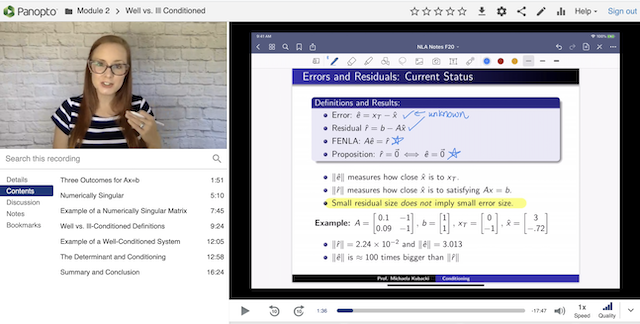
- Utilize iPad screen-share in zoom:
- What you need: Zoom, a connector cable for iPad to laptop (optional)
- How to do it: Start (and lock) an empty zoom meeting. Select “share screen” from within zoom, and wirelessly connect your iPad. By connecting wirelessly, this will put apps, such as GoodNotes, into “Presenter mode” for a better display experience (no toolbar distractions, larger slides). You can also use a wired connection if you so desire, although the presenter mode may not activate. Before recording, on the zoom toolbar, click “More” and “hide the floating meeting controls” so they are no longer visible on your screen. In Panopto, select your laptop screen with your laptop screen with zoom displayed as your secondary screen source (your primary is your laptop camera).
- What the end product looks like:

- Tip: Minimize the look of the green zoom outline by making your desktop background black and rearranging icons so they are not visible.
- Other Potential Options: There are many other applications (for free and purchase) you can use to mirror your iPad screen onto your computer. One other option is Apowermirror. Typically, these applications will not put apps such as GoodNotes into Presenter Mode (so the end result may be similar to Option 1 with QuickTime).
lecture


Leave a Reply